Import a grant from a document
Skip the retyping. Upload an award letter, notice of grant award, or CSV and TideWatch AI extracts the fields.
The AI importer reads federal notices of grant award, foundation award letters, and modification documents, then maps their contents to the same fields the manual wizard uses. You review, adjust, and confirm.
Start the import flow
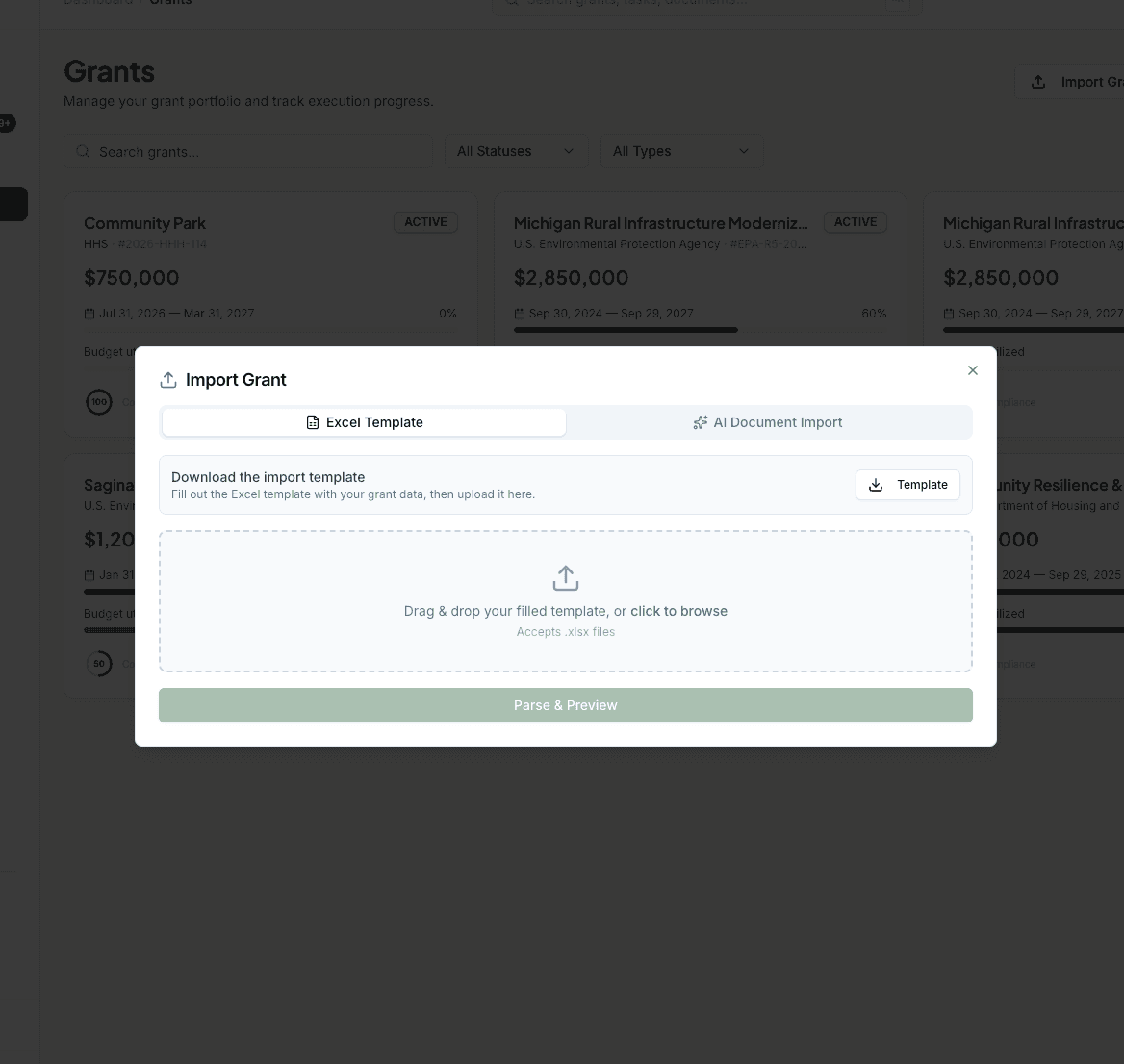
From the Grants page, click the Import button next to New Grant. You'll see two options: a CSV template for bulk imports, and an AI Document upload for one grant at a time from a PDF or Word doc.
Choose your source
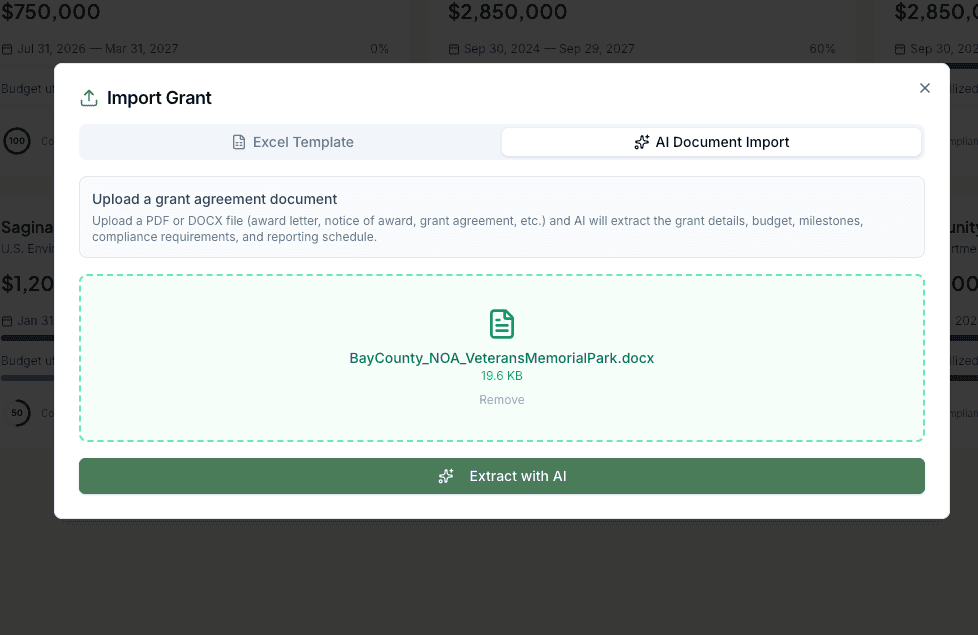
For a single award, pick AI Document and upload the notice, letter, or modification. For migrating many grants at once, download the CSV template, fill it in, and upload it back.
Review what the AI found
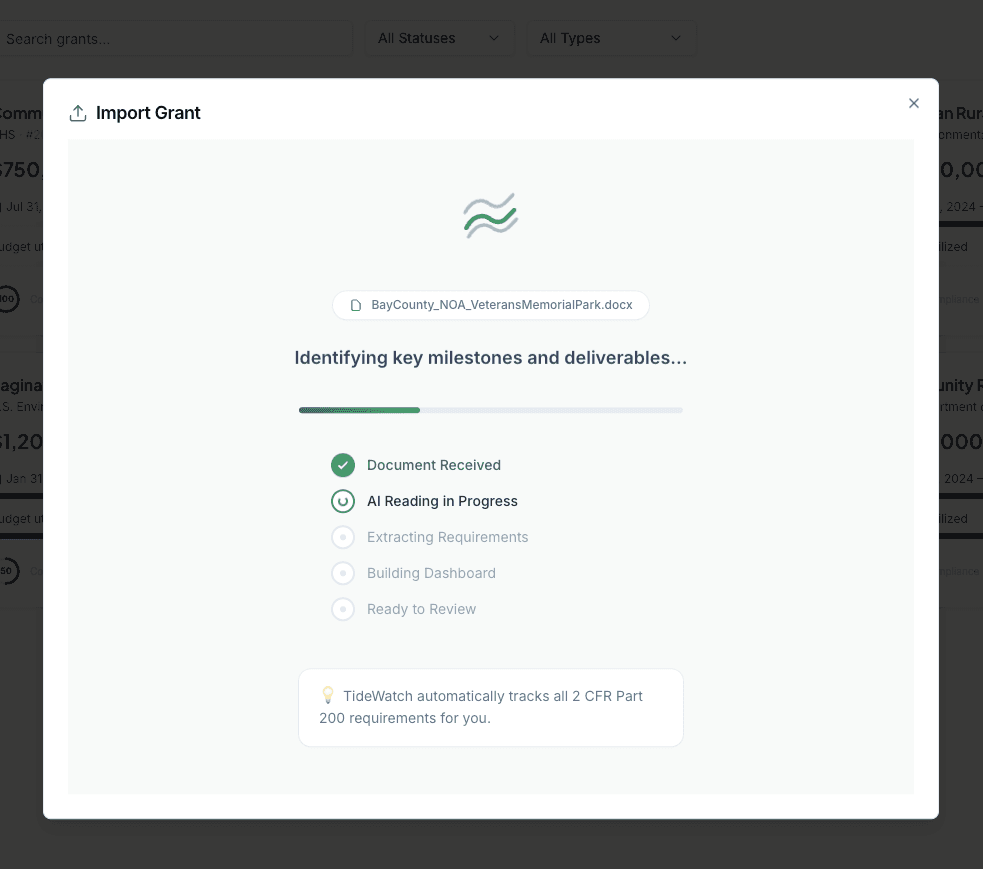
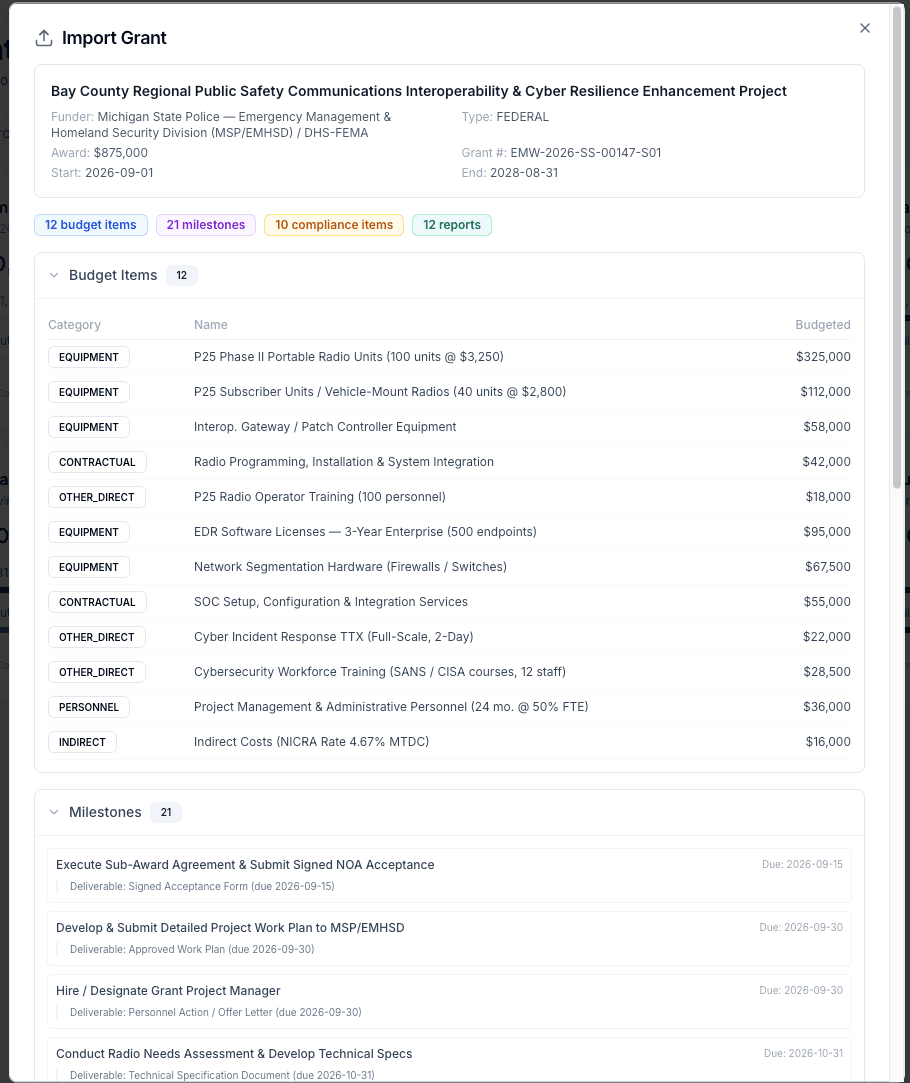
TideWatch extracts the grant name, funder, award amount, performance period, budget categories, reporting requirements, and compliance deadlines. Every field is editable. Check the numbers and dates against your source document.
Fix anything that's off
Common cleanups: correcting the CFDA number, splitting a lump-sum budget into categories, or entering a different match percentage. Edits here don't retrain the AI; they just correct this grant.
Confirm and open the grant
Click Import. The grant is created with everything the AI found plus your edits, and you're taken to its overview page. Any documents you uploaded are attached to the grant automatically.