Close out a grant cleanly
The last 30 days of a grant determine your audit posture for the next three years. Here's the checklist.
TideWatch's closeout checklist reads the state of your budget, compliance, milestones, and reports, then tells you what's still open. When every section is green, you mark the grant Closed and the retention clock starts.
Start closeout
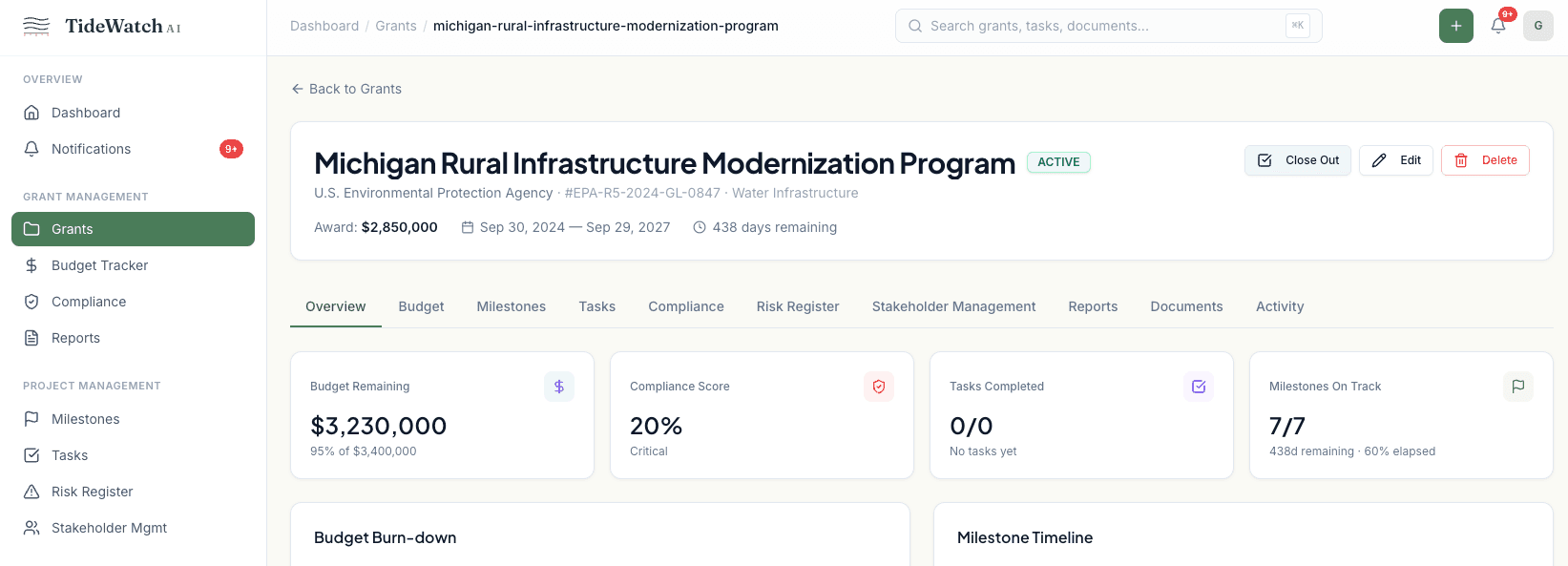
From the grant overview, click Close Out in the top-right actions. The grant's status moves to Closeout and a new Closeout tab appears alongside the others. Nothing is deleted or locked — you can Return to Active from the Closeout tab at any point.
Read the checklist
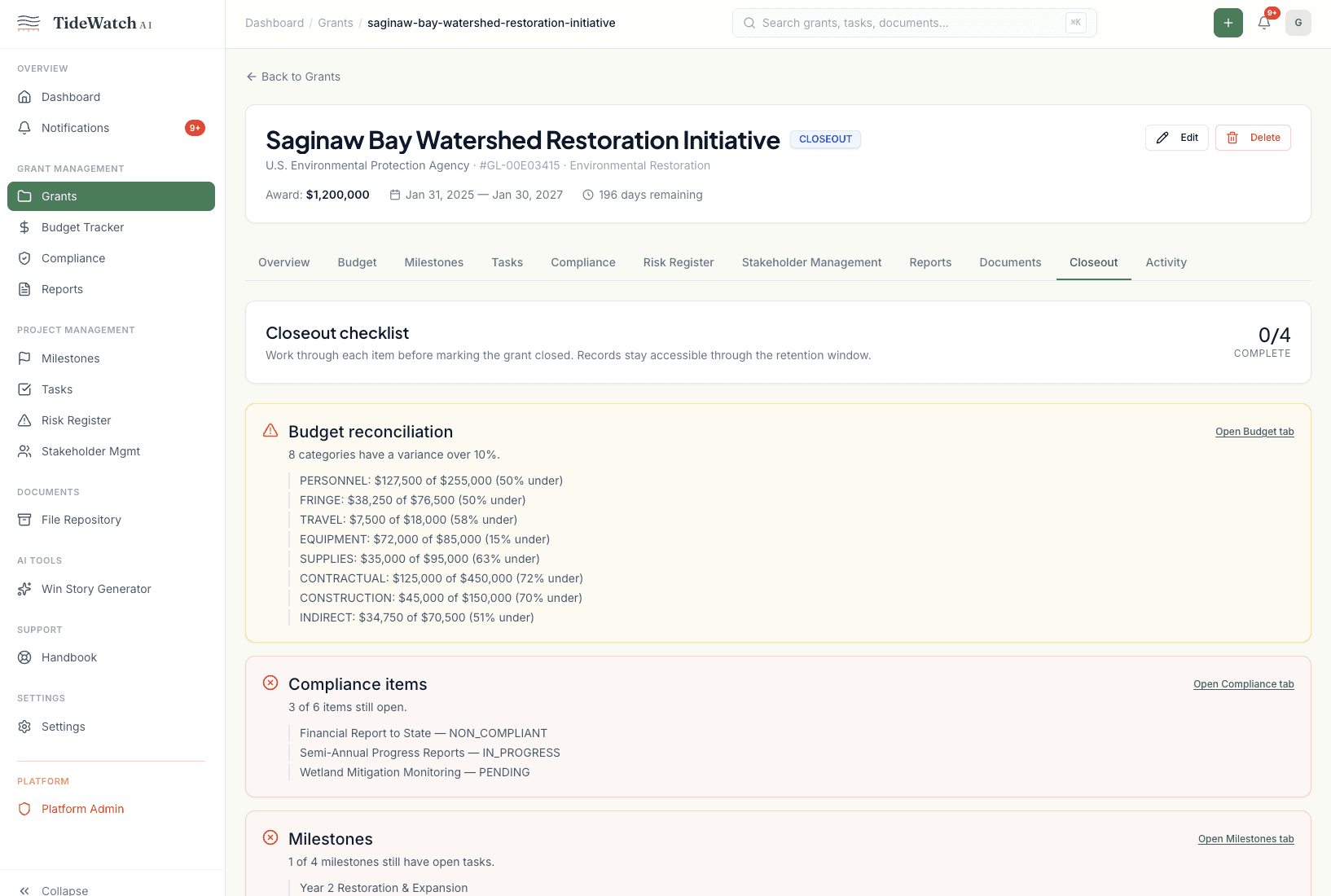
The Closeout tab shows four sections: Budget reconciliation, Compliance items, Milestones, and Final report. Each one reports pass, warning, or fail and includes a link back to the relevant tab so you can fix what's flagged without losing your place.
Reconcile the budget
Budget reconciliation compares each category's spend against what was budgeted and flags anything more than 10% off. Open the Budget tab to log final expenses or adjust the plan; return to the Closeout tab and the check re-runs against the fresh numbers.
Close open compliance items
Any compliance item not marked Compliant, Waived, or Not Applicable shows here as still open. Attach documents, mark items complete, or waive the ones that no longer apply from the Compliance tab.
Finish milestones and the final report
Milestones flag any that still have open tasks. And under Reports, create a report with type Final and submit it — the Closeout tab confirms once a final report exists in Submitted or Approved status.
Mark the grant closed
Once every section is green, the Mark Grant Closed button activates. Confirming sets the status to Closed and stamps today as the closeout date (if you didn't already set one). The grant stays fully accessible; the Closeout tab keeps the record of what was verified.